
Before you begin
You need access to the survey’s results and written comments. Available views, filters and comment details depend on your survey and access. The example below uses Demo Organization and the English interface. What you see depends on your access. Some people see comment summaries and the Heatmap and Comparisons views rather than individual comments. If Comments isn’t offered in Comment view, or you see Individual comments aren’t available or Your account doesn’t include access to verbatim comments, your access doesn’t include individual comments. See Why can’t I see a result, report or comment? Labels such as sentiment, emotion and themes are assigned automatically and can be wrong. Read the comment itself before drawing conclusions.Open the comment list
- Under Survey Hub → Active Surveys, open your survey’s results: select Analyze or the survey’s row. Results are available after the survey closes.
- Select Comments in the survey navigation. On a narrow screen, look under More.
- Check the survey name. In Comment view, choose Comments if the page opens in Heatmap or Comparisons.
- Wait for the list to finish loading before reading its results or empty-state message.
Search and filter written feedback
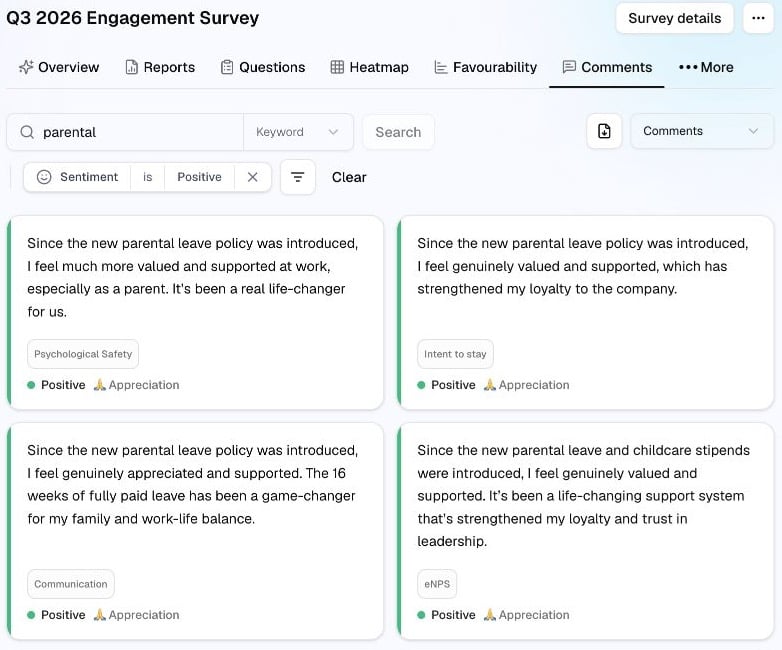
- Enter a word or phrase in Search comments…. Use Keyword to match words and phrases, or Semantic to find comments with similar meaning.
- Press Enter or select Search when available, then wait for the results to update.
- To narrow the list further, select Filter beside the search controls. It may appear as a filter icon.
- Choose a category and check the values you need. For example, Sentiment → Positive selects comments with that polarity label. Other available categories can include Themes, Comment Type, Questions and Tags.
- Click outside the picker. Check the search text and selected-filter labels before reading the updated list.
Read a comment in context
A card shows written feedback and available labels, such as its question group, polarity or emotion. Read the text alongside those labels. Select a comment card when it is interactive to open Comment Context. The panel can show the survey statement, score and follow-up exchanges associated with that comment. Not every comment has the same context. Select Close to return to the list. Use Comments per page and the page arrows below the list to browse more results. Check the displayed range and total rather than assuming the cards on screen are the complete set.Watch: search, filter and read a comment
This 27-second silent example switches Comment view to Comments, searches for “workload”, filters by Sentiment → Positive, then opens a comment in Comment Context and closes it. Innerlogic Sandbox example. Follow the written steps above for the same workflow.Change or clear your selections
- Edit the search text to run another search. To remove only the search, empty the field and wait for the results to update.
- Select a filter’s value label to change its selection, or select × / Remove filter to remove that filter.
- Select Clear beside the filters to reset the list’s search and filters together. Confirm that the search field is empty and the selected-filter labels have disappeared.
Use the other comment views
Use Comment view to switch between the available views:
These views are inside Comments. The separate Heatmap tab in the survey navigation compares survey scores; see Compare groups with Heatmap and Hierarchy.